Create Passkey Over Authorized Session
This flow applies to scenarios such as:
-
Post sign-up/onboarding completion. Passkeys are created after successful onboarding, ensuring users meet verification requirements, reinforcing security right from the start.
-
Users in a pre-authenticated session. This ensures users are authenticated or pre-approved by your server before registering, preventing unauthorized access and ensuring only legitimate users can create a passkey.
To protect the passkey creation process, ensure you have an authorized session by using API keys to request authorization tokens, which are passed to LoginID client SDKs.
This flow applies when your LoginID application is classified as a protected application, meaning that Registration Requires Authentication Token is enabled in your application settings.

When this setting is enabled, users must be authenticated or pre-authorized. This ensures that only verified users can create accounts and generate passkeys, requiring a valid authorization token during the registration process.
Overview Diagram
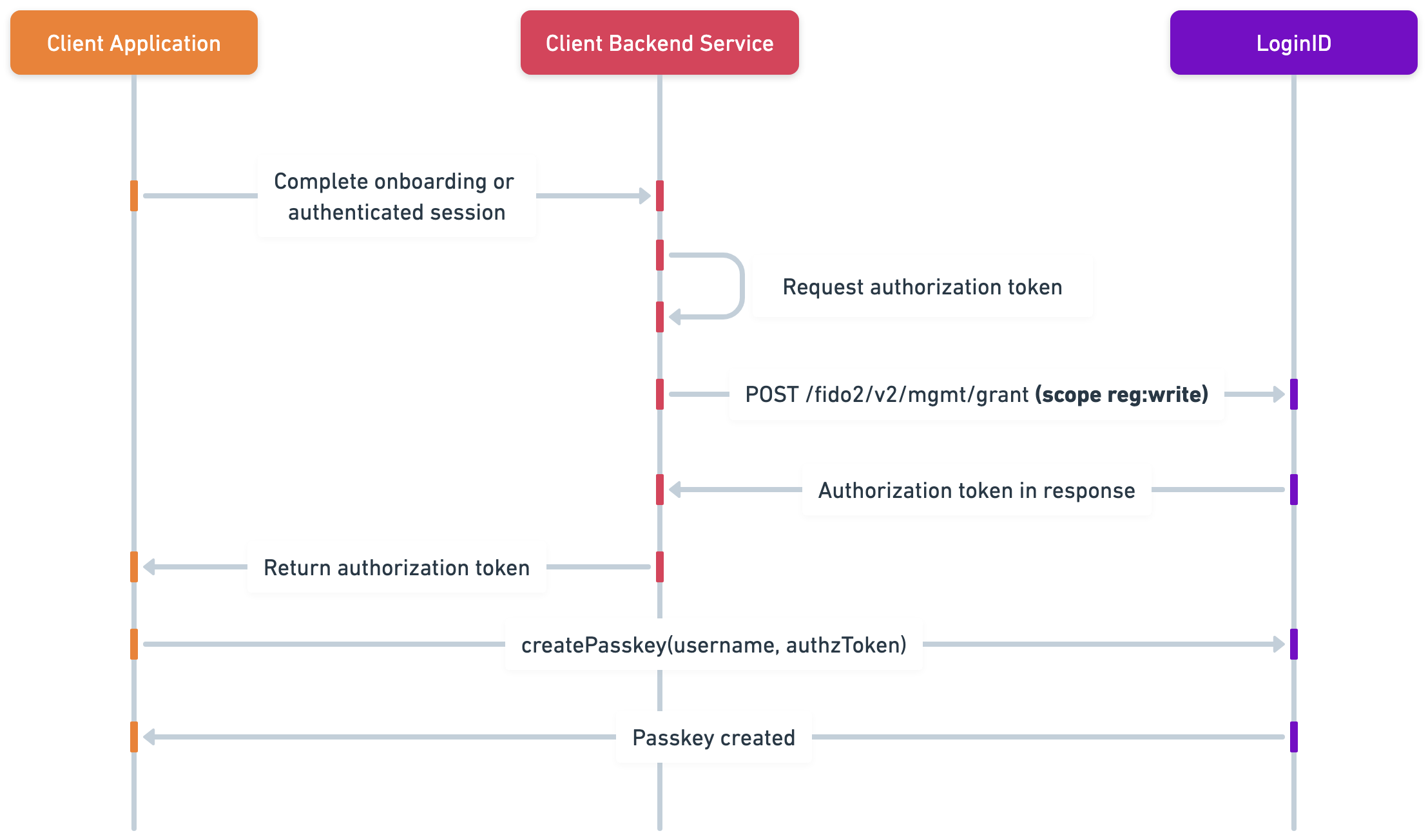
This high-level sequence diagram outlines the process:
- Finalized user onboarding or pre-authenticated session.
- Your backend requests an authorization token from LoginID by calling POST /fido2/v2/mgmt/grant authorized with your API key with the scope reg:write.
- The token is passed to the LoginID client SDK to execute client.createPasskey(username, token).
- LoginID creates the passkey and returns an access token (LoginID token) to the client SDK.
- The client returns the access token to your backend, which verifies and validates the token before establishing the authenticated user session.
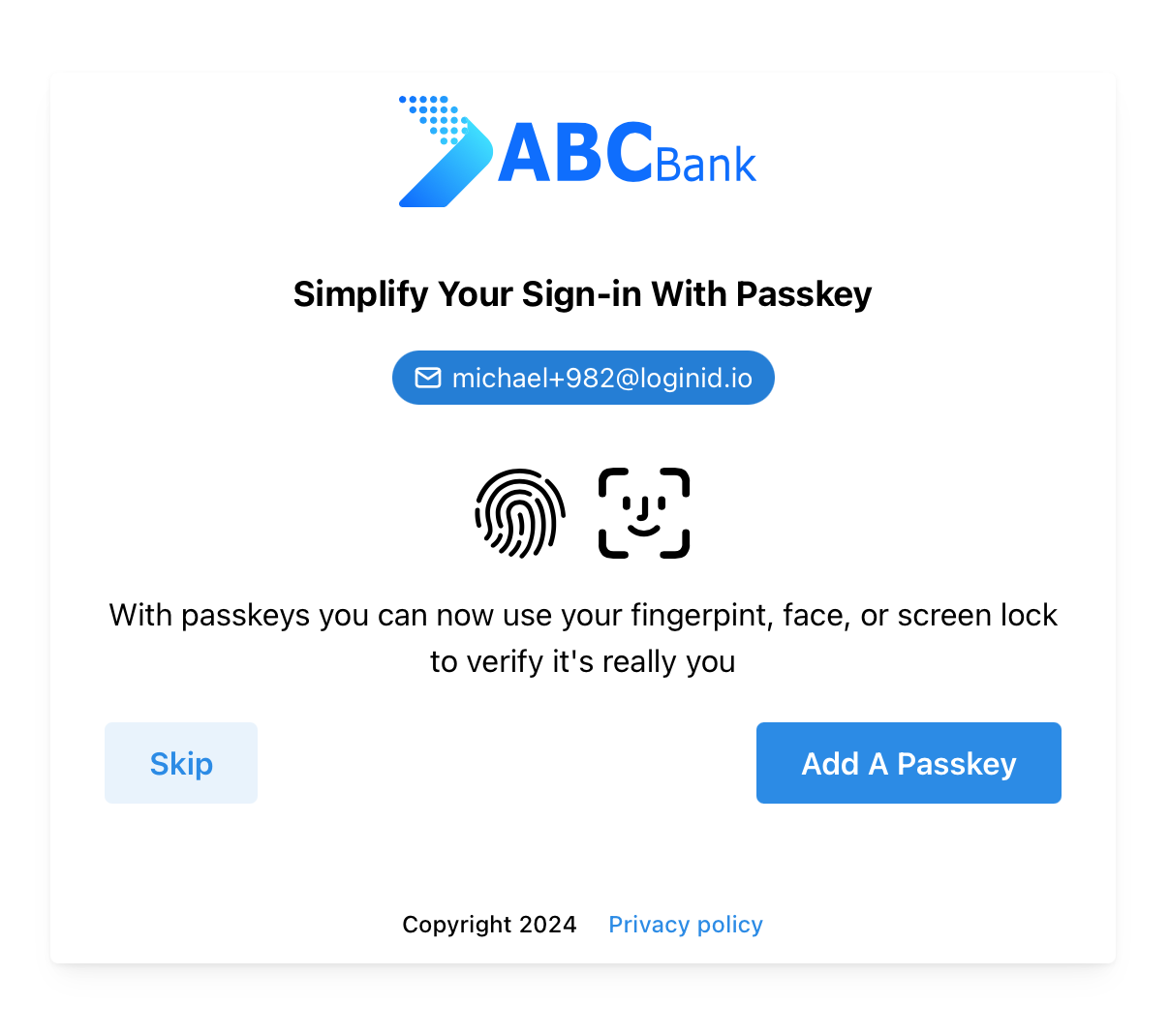
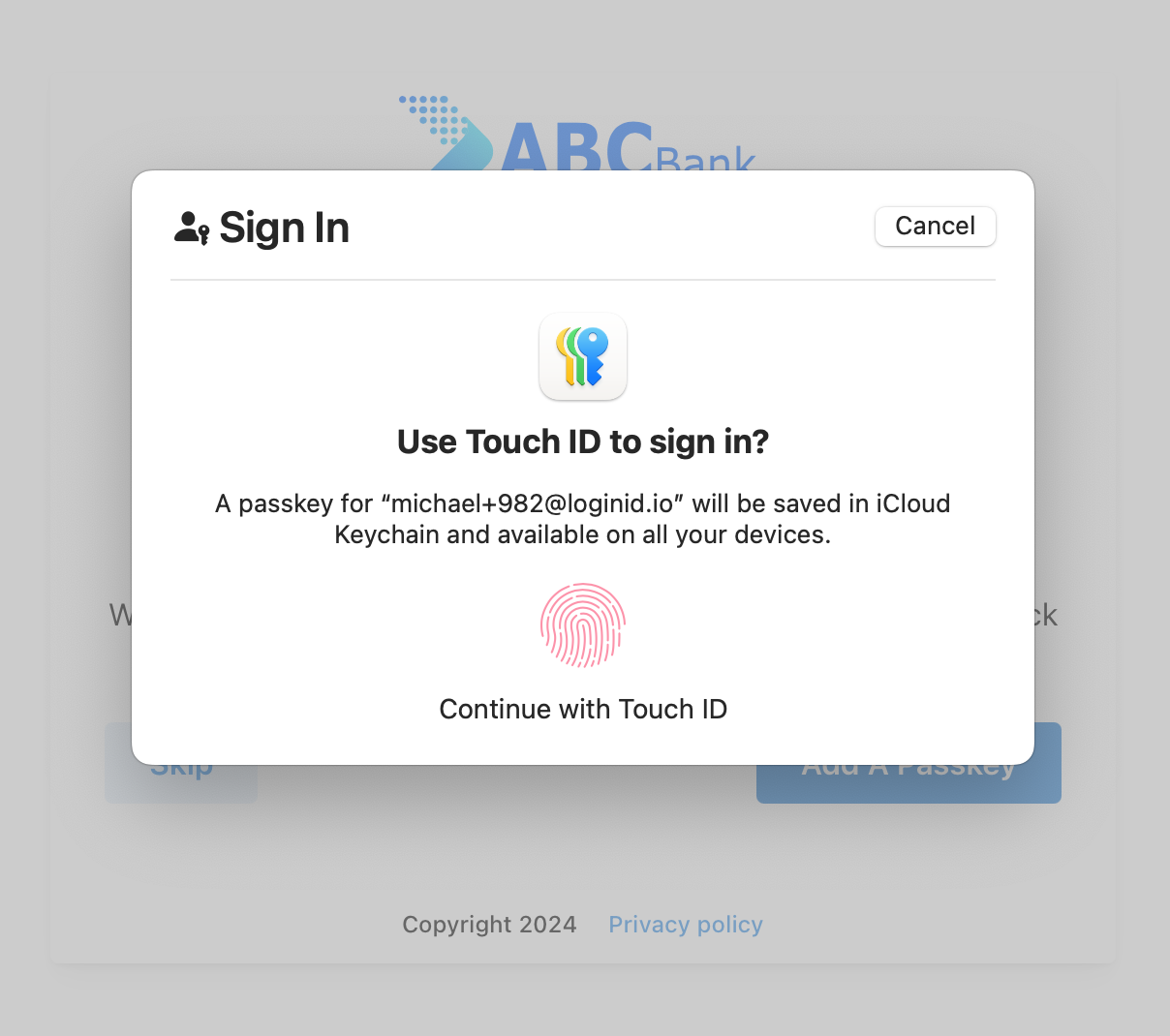
Here is an example of how it might look like:
Prerequisites
- Create an application to obtain a base URL. The SDK uses this base URL to interact with the LoginID authentication service.
- Create an API key with at least the reg:write scope. You’ll need this to request authorization tokens from your backend.
- Make sure your application's register APIs are secure.
Setup SDK
- Javascript
- Kotlin
- Swift
npm i @loginid/websdk3
Import and initialize an instance:
import { LoginIDWebSDK } from "@loginid/websdk3";

const lid = new LoginIDWebSDK({
  baseUrl: process.env.LOGINID_BASE_URL,
});
First, ensure you have the Maven Central repository in your project's settings.gradle.kts file:
repositories {
  google()
  mavenCentral()
}
Next, add the SDK and required dependencies to your app module's build.gradle.kts:
dependencies {
// LoginID SDK
implementation("io.loginid:auth:1.1.1")
}
Import the class within your application:
import io.loginid.auth

class MainActivity : AppCompatActivity() {
    val lid = LoginIDAuth(this, "<LOGINID_BASE_URL>")

    override fun onCreate() {
        super.onCreate()

        // Additional setup...
    }
}
Add the SDK dependency using Swift Package Manager in Xcode:
- In Xcode, open your project.
- Go to File → Add Package Dependencies….
- In the search bar, paste:
https://github.com/loginid1/loginid-ios
- Select the target(s) where you want to add the SDK and click Add Package.
Import the class within your view models:
import LoginIDAuth

@main
struct MyApp: App {
    private let lid: LoginIDAuth

    init() {
        LoginIDAuth(baseUrl: "<LOGINID_BASE_URL>")

        // Other setup code...
    }
}
Create Passkey
After obtaining the authorization token from your backend, pass it to the LoginID client SDK. The user creates a passkey, and the response includes a LoginID token.
Ensure usernameType matches the username being registered (email, phone, or other). A mismatch will result in a username type mismatch error.
See the Troubleshooting section for supported formats and other common integration issues.
- Javascript
- Kotlin
- Swift
import { useAuth } from "../../contexts/AuthContext";
import { LoginIDWebSDK } from "@loginid/websdk3";

const lid = new LoginIDWebSDK({
  baseUrl: process.env.REACT_APP_LOGINID_BASE_URL,
});

const Register: React.FC = () => {
  const [username, setUsername] = useState<string>("");
  const [error, setError] = useState<string>("");
  const { setAuthUser } = useAuth();

  const handleRegister = async (e: React.FormEvent) => {
    e.preventDefault();

    try {
      // Get the authorization token from your backend after a successful onboarding
      // or pre-authenticated session

      // User creates a passkey
      const { token } = await lid.createPasskey(username, authzToken, { usernameType: "email" });

      // You can return LoginID token to your backend for verification

      setAuthUser(user);
    } catch (e) {
      if (e instanceof Error) {
        setError(e.message);
      }
    }
  };
};
import androidx.lifecycle.lifecycleScope
import io.loginid.auth.LoginIDAuth
import io.loginid.auth.models.CreatePasskeyOptions
import io.loginid.core.enums.UsernameType
import io.loginid.core.errors.LoginIDError
import kotlinx.coroutines.launch

class MainActivity : AppCompatActivity() {
    private lateinit var usernameEditText: EditText
    private lateinit var errorTextView: TextView
    private lateinit var registerButton: Button
    private val lid = LoginIDAuth(this, "<BASE_URL>")

    private fun handleRegister() {
        val username = usernameEditText.text.toString()
        errorTextView.text = ""

        lifecycleScope.launch {
            try {
                // Get the authorization token from your backend after a successful onboarding
                // or pre-authenticated session

                // User creates a passkey
                val options = CreatePasskeyOptions(
                    usernameType = UsernameType.EMAIL
                )

                val result = lid.createPasskey(this@MainActivity, username, authToken, options)

                // You can return LoginID token to your backend for verification

                AuthContext.setAuthUser(user)
            } catch (e: Exception) {
                when (e) {
                    is LoginIDError -> {
                        errorTextView.text = e.message ?: "A LoginID error occurred"
                    }
                    else -> {
                        errorTextView.text = e.message ?: "An error occurred"
                    }
                }
            }
        }
    }
}
import SwiftUI
import LoginIDAuth

@main
struct ExampleApp: App {
    @State private var errorMessage: String? = nil
    @State private var username: String = "user@example.com"
    private let lid = LoginIDAuth(baseUrl: "<BASE_URL>")

    var body: some Scene {
        WindowGroup {
            VStack {
                Button("Register with Passkey") {
                    Task {
                        await registerUser()
                    }
                }
                .padding()
            }
        }
    }

    private func registerUser() async {
        do {
            // Get the authorization token from your backend after a successful onboarding
            // or pre-authenticated session

            let options = CreatePasskeyOptions(usernameType: "email")

            let result = try await lid.createPasskey(
                username: username,
                authzToken: authzToken,
                options: options
            )

            // You can return LoginID token to your backend for verification

            AuthContext.shared.setAuthUser(result.user)
        } catch let error as LoginIDError {
            errorMessage = error.message
        } catch {
            errorMessage = error.localizedDescription
        }
    }
}
Once you have received the result LoginID token, you can send it to your backend, and verify it. For detailed technical instructions, refer to this section on verifying LoginID tokens.